
For a product designer or engineer who needs to convert a 3D model into a photorealistic image, the comparison between KeyShot and Blender inevitably comes up. Both can produce high-quality renders. But the path to that result is radically different: one is designed for the workflow to be fast, reproducible, and accessible to people who are not trained 3D artists; the other is a complete 3D creation suite with a significant learning curve that, when mastered, offers total control over every aspect of the render.
The right choice does not depend on which produces prettier images: it depends on who will make the renders, how often, from what data source, and with what time constraint. This guide compares both from that angle.
The Central Difference: Specialized Tool vs Generalist Suite
Blender is a complete 3D creation ecosystem: modeling, sculpting, animation, physics simulation, compositing, video editing, and rendering. It is an extraordinarily powerful tool for artists and animators working in creative production. That breadth has a cost: learning to use Blender to produce quality product renders requires months of practice, and the workflow is not optimized for the industrial design cycle.
KeyShot was designed with a single purpose: making photorealistic product renders quickly and reproducibly, starting from 3D CAD models. It is not a creation suite: it is a product visualization tool that an engineer or product designer can learn to use in hours, not months. The workflow is built around the specific needs of product design: import the CAD model, assign materials, adjust lighting, and export the image, with photorealistic results from the first attempt.
For a product design team where renders are made by the same engineer or designer who created the CAD model, that difference in learning curve is decisive. With Blender, that engineer needs significant training time before producing quality renders. With KeyShot, they can produce presentable renders the same day they start using the tool.
CAD Workflow: From Where the Model Lives to Where the Image Lives
The KeyShot workflow is built around native CAD formats. KeyShot imports directly from SolidWorks, CATIA, PTC Creo, Rhino, SketchUp, Alias, and over twenty additional formats, without needing to export to an intermediate format or losing material and model structure information. When the design changes in the CAD software, the model updates in KeyShot with one click, maintaining all materials and scene configurations.
That direct flow between CAD and render has a concrete impact on iteration speed. When the client requests a design change at 5 PM and the render needs to be ready for the next day presentation, the time to update the model in KeyShot and regenerate the image is minutes, not hours. That iteration speed is what makes producing renders during the design process viable, not just at the end.
Blender can import formats like OBJ, FBX, STL, and some CAD formats with additional plugins, but the workflow is not optimized for the industrial design update cycle. Each modification in the CAD model requires re-exporting and importing the file in Blender, with the risk of losing material or lighting configurations in the process. For a team that iterates frequently on the design, that overhead accumulates.
Calibrated Material Library: the Differentiator That Eliminates Technical Work
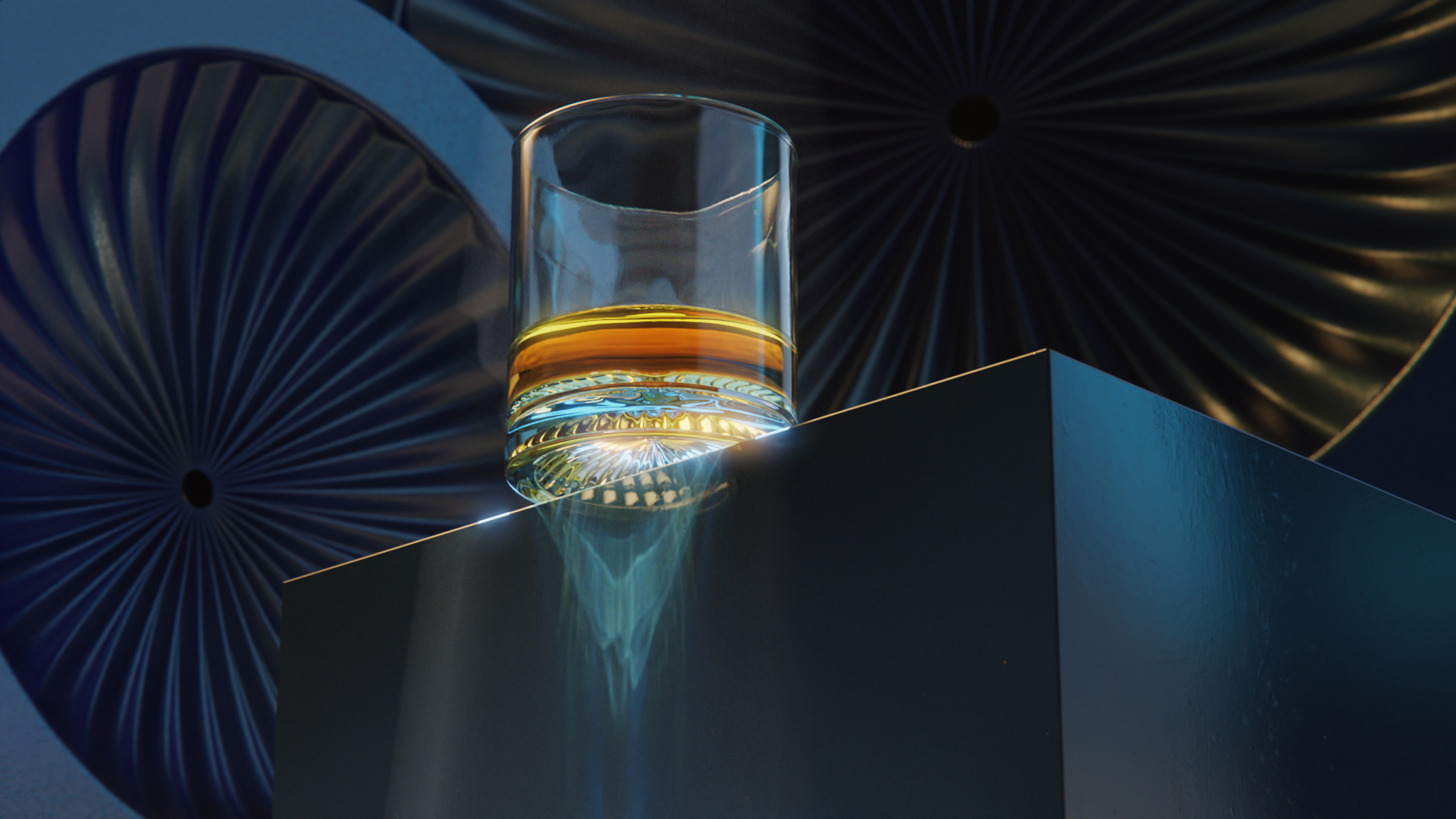
In photorealistic rendering, material quality is as important as model geometry. A metal that does not have the correct reflection properties, a plastic with the wrong roughness, or glass that does not refract light realistically produces renders that look “digital” even if the geometry is perfect. Making materials look photorealistic is one of the most technical and slowest parts of the rendering process in generalist tools like Blender.
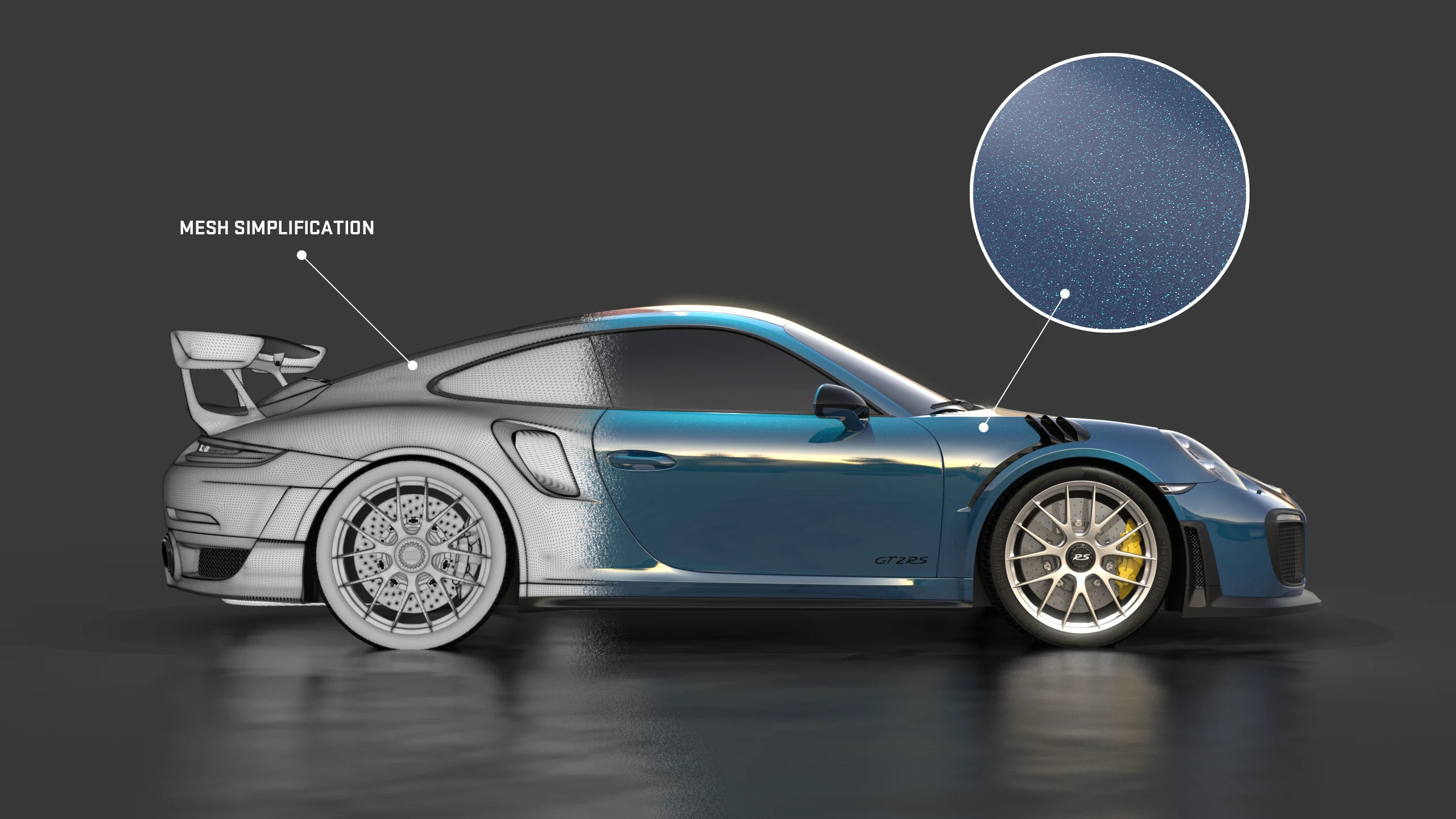
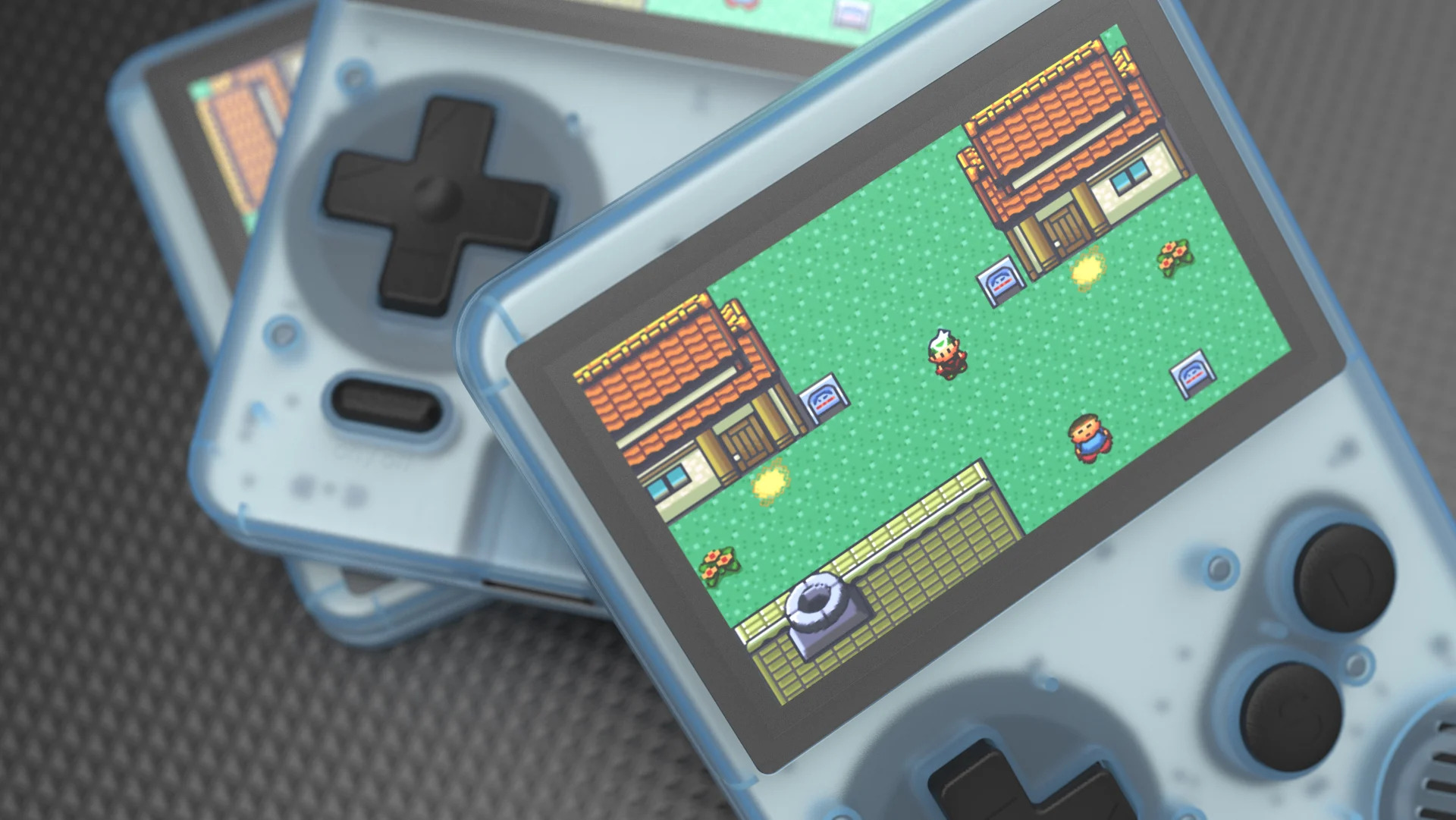
KeyShot includes a library of physically correct materials that simulates the real optical properties of each material: how light behaves in metals, plastics, rubbers, glasses, textiles, and special materials like pearlescent paints or anodized finishes. Those materials are calibrated against real physical samples, which means ABS plastic in KeyShot looks like real ABS plastic, not a digital approximation.
For a product designer who needs to show a client how a part will look in the exact color from a plastics supplier catalog, or how an anodized aluminum part will reflect light, that calibrated material library is the tool that makes that promise possible without the designer needing technical rendering knowledge. In Blender, reproducing that level of material fidelity requires technical knowledge of procedural material systems and hours of adjustment.
Real-Time Rendering: Seeing the Result While Adjusting
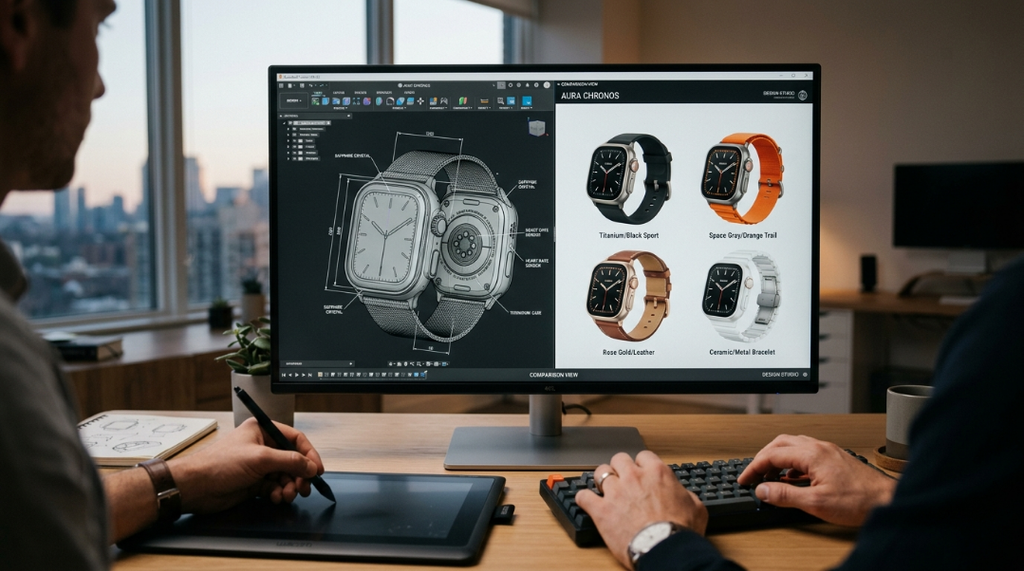
One of the most concrete advantages of KeyShot for the product design workflow is that rendering happens in real time while the user makes adjustments. When the designer moves the light, changes the material, or rotates the model, the result updates continuously on screen. That means the visual adjustment process is immediate: the designer sees the result of each change at the moment they make it, without waiting for a test render to complete.
That real-time feedback radically accelerates the scene adjustment process. What in a traditional render workflow would require launching test renders, waiting for the result, adjusting a parameter, launching another test render, and repeating the cycle several times, in KeyShot is resolved in minutes of interactive visual adjustment. For a team that needs to produce renders from multiple angles and material configurations for a presentation, that iteration speed has a direct impact on total project time.
Material Variants and Configurations: One Model, Multiple Deliverables
In product design it is common to need to show the same product in multiple colors, finishes, or material configurations. If the product comes in six colors, the client wants to see renders of all six. If there is a premium version with a different finish, it needs its own render. In a traditional render workflow, that means repeating the adjustment process for each variant.
KeyShot has a studio and configuration system that allows creating multiple material, color, and camera configuration variants on the same model and rendering them in batch. Once the variants are configured, the system generates all renders in sequence without manual intervention. For a product design team that needs to deliver renders of a full line with multiple options, that batch automation significantly reduces delivery time.
KeyShot With Aufiero Informatica
KeyShot is distributed by Aufiero Informatica, an official distributor with extensive experience in product visualization and rendering software for design and engineering teams in Latin America.
If your team produces product renders regularly and the current process consumes designer or engineer time that could be dedicated to design itself, Aufiero can advise you on evaluating KeyShot for your team project profile and workflow.
Frequently Asked Questions: KeyShot vs Blender
What is the main difference between KeyShot and Blender?
Blender is a complete 3D creation suite with a significant learning curve, designed for artists and animators. KeyShot is a specialized product rendering tool that a designer or engineer can learn in hours, with direct flow from CAD formats and calibrated materials ready to use.
Does KeyShot import directly from my CAD software?
Yes. KeyShot imports directly from SolidWorks, CATIA, PTC Creo, Rhino, SketchUp, Alias, and over twenty additional formats. When the model changes in the CAD software, it updates in KeyShot with one click, maintaining materials and scene configurations.
Do I need technical rendering knowledge to use KeyShot?
No. The KeyShot workflow is designed for product designers and engineers, not trained 3D artists. The calibrated material library, real-time rendering, and drag-and-drop workflow allow producing photorealistic renders without technical knowledge of lighting or procedural materials.
Does KeyShot allow generating color and material variants in batch?
Yes. The KeyShot studio and configuration system allows creating multiple material, color, and angle variants on the same model and rendering them in batch without manual intervention. For product lines with multiple options, that significantly reduces delivery time.
Where can I purchase KeyShot?
Through Aufiero Informatica, official KeyShot distributor in Latin America.
How long does it take your team to convert a 3D model into a marketing image or client presentation? If the answer involves hours of technical adjustment or dependence on a render specialist, KeyShot can change that equation. With direct CAD flow, calibrated materials, and real-time rendering, the time between model and image shifts from being a bottleneck to being a natural part of the design workflow.
Aufiero Informatica is an official KeyShot distributor in Latin America.